CompuTec License Server Installation
This document provides a step-by-step guide on how to install and configure CompuTec License Server.
You can check the available ProcessForce user license types here.
Installing CompuTec License Server
Remove an old version of ProcessForce License Server and SAP COM License Bridge in case you used them previously (with ProcessForce 8.81 / 8.82 / 9.0 PL05 - PL08 HotFix) before installing a new version.
CompuTec License Server can be installed in a Windows environment only.
-
Download CompuTec License Server from here
-
Extract the ZIP file.
-
Run the
CompuTec.LicenseServer.Setup.msifile and click the Next button: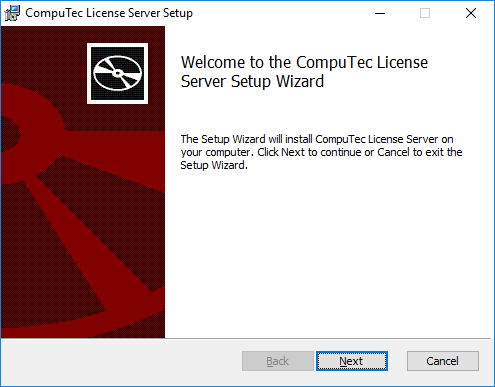
-
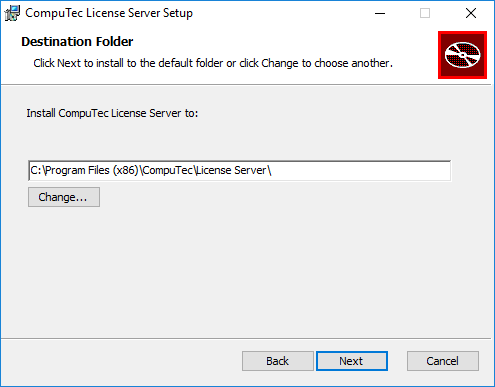
Specify the installation folder (leaving a default folder path is recommended) and click Next:
-
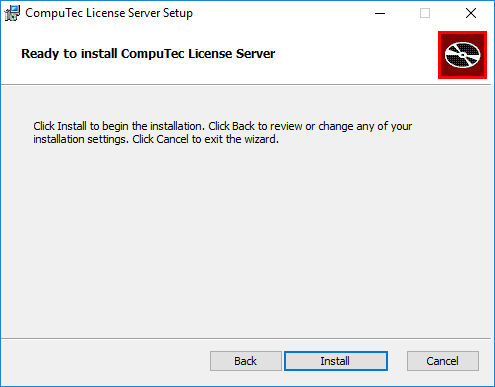
Confirm installation – click the Install button:
-
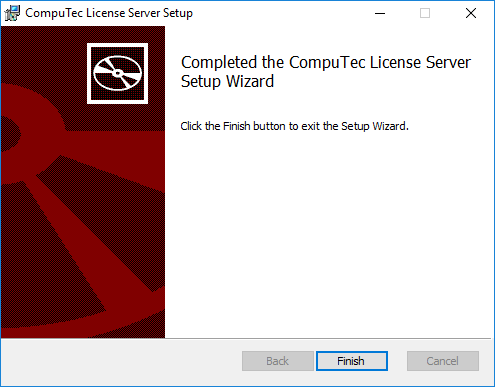
And if the installation is completed without any errors, click the Finish button:
Setting Windows Firewall rule
-
Open:
Windows Settings → Network & Internet → Windows Firewall: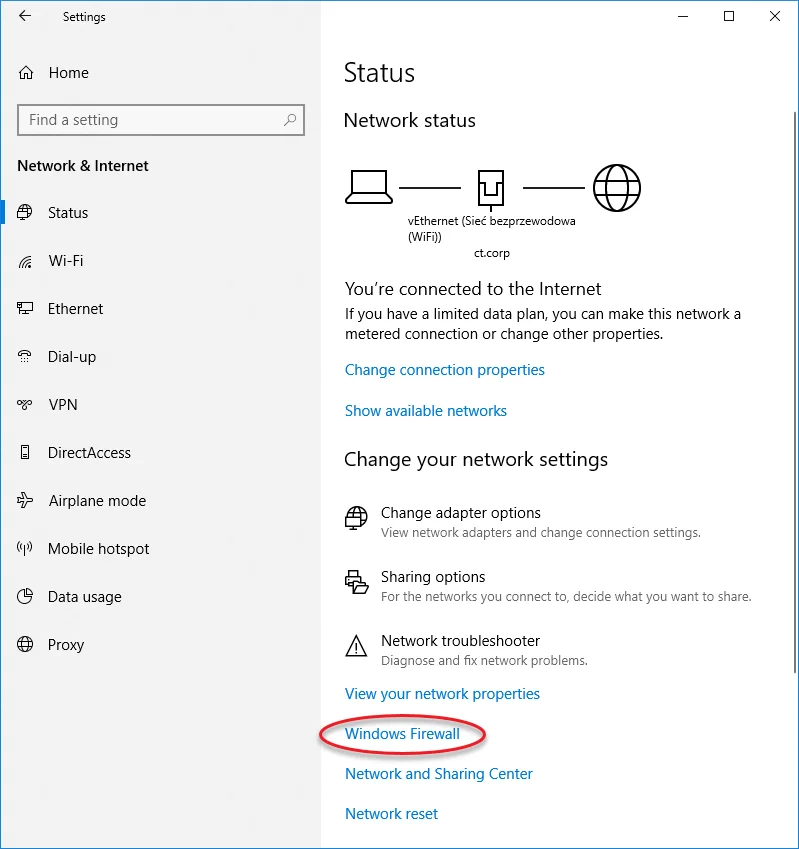
-
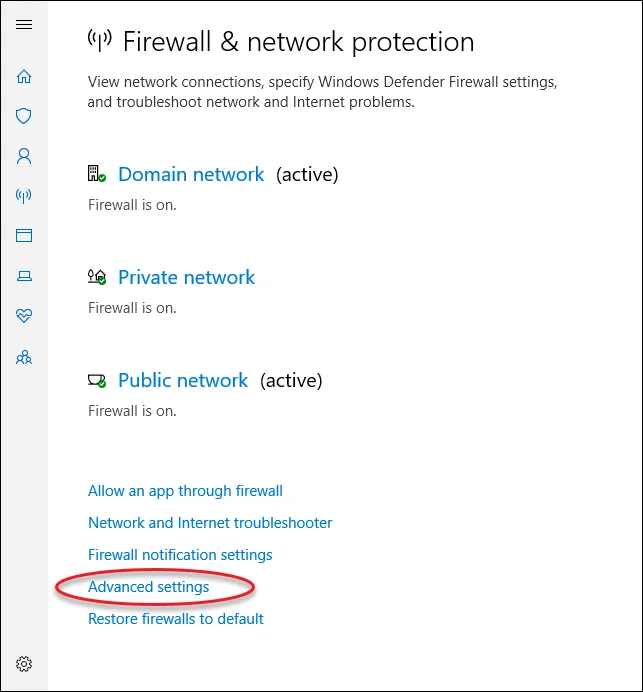
Click the Advanced settings option:
-
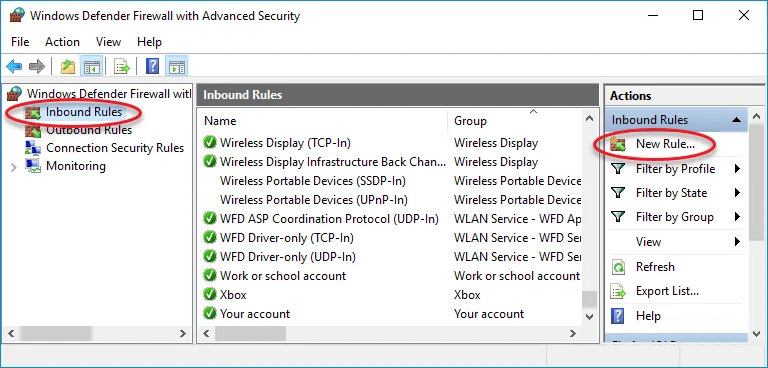
In Windows Firewall with Advanced Security window, select Inbound Rules and click New Rule... in the Actions section – this will run New Inbound Rule Wizard:
-
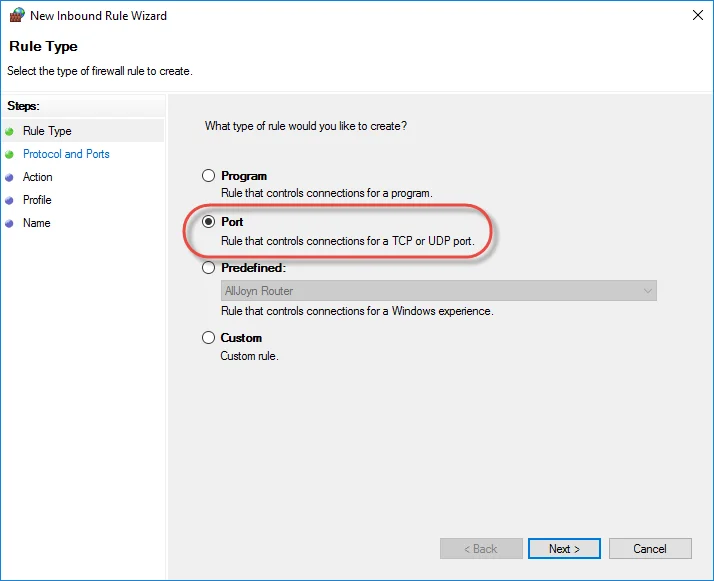
Choose Port as a rule type:
-
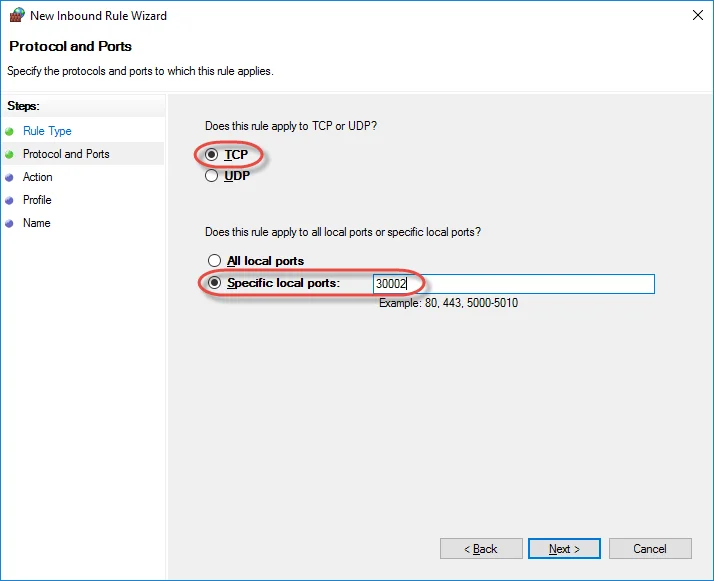
Choose TCP protocol and specify 30002 local port:
-
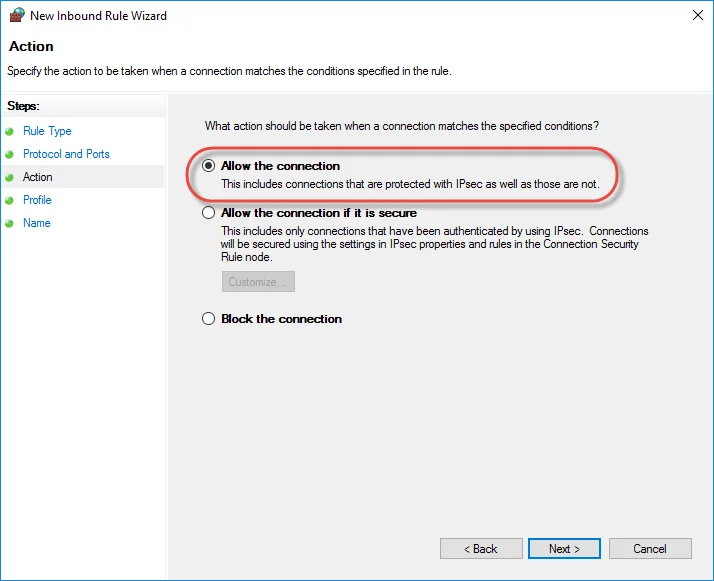
Choose the Allow the connection action:
-
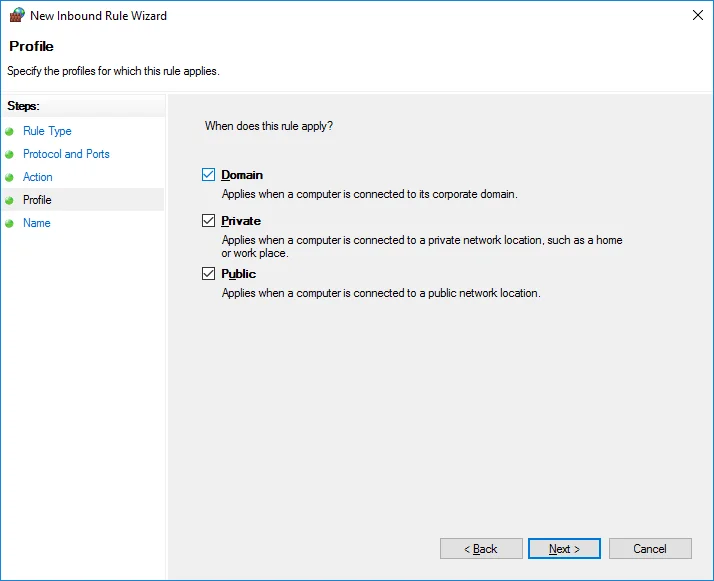
Choose all profiles:
-
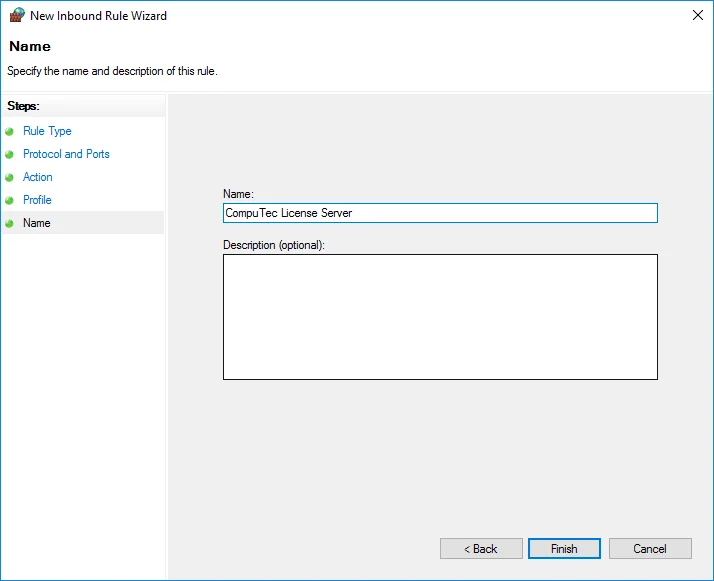
Specify the rule name and click Finish:
Using CompuTec Service Manager and Configuring Direct Data Access mode
You can find the guide here.