Show Resources Chart
If the Show Resource Chart checkbox is checked, a form with Resource Chart is displayed.
Resource Chart
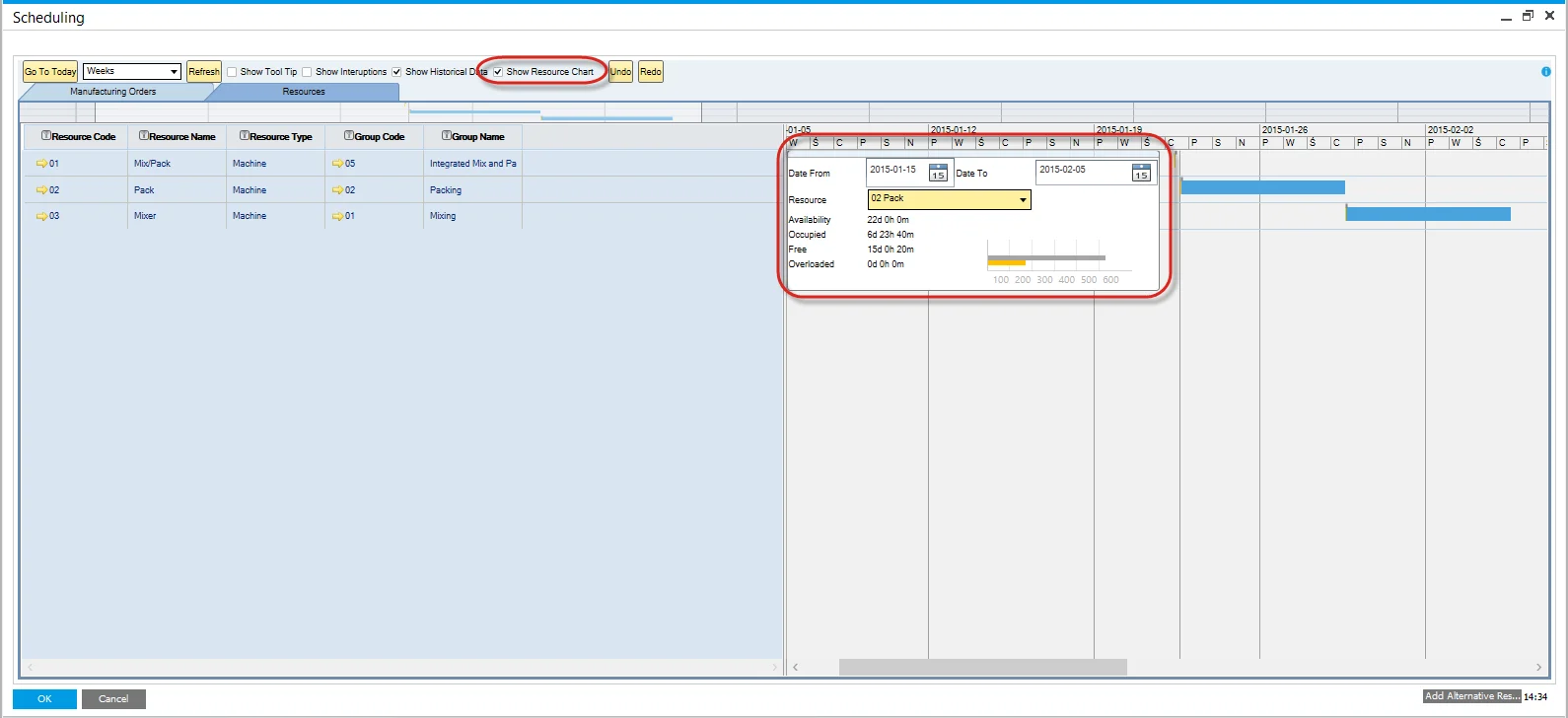
Chart communicates four different kinds of time for a specific resource or a group of resources:
- Availability – data displayed here is taken from Resource Calendar. It consists of Occupied and Free time.
- Occupied – is calculated from all Manufacturing Orders assigned to a specific resource in a required period.
- Free – Availability minus Occupied time. A value that describes a time when a resource is not working and is free to use.
- Overloaded – value is displayed here when the Occupied value exceeds Availability. In this situation, a value displayed here shows the amount of time over Availability time.
After setting the required time constraints (in the example screenshot, the period starts on 2015-01-15 and ends on 2015-02-05) and a resource chart will be filled with data:
- a value of time next to each of the time kinds described above
- a graphic representation of those values – which allows fast comparison of different times.
Within the Chart, data for a specific resource or a group of resources can be displayed.
The dynamic chart changes automatically after changing data displayed, e.g., by changing graphic representations on Gantt Chart.
Refresh button

The capacity graphs displayed in the Gantt chart are based on the Manufacturing Orders selected and loaded into the form. The user can choose a subset of Orders in the Manufacturing Order selection screen. Therefore to get an accurate picture of the resource capacity, to include all selected and non-selected Orders, pressing the refresh button will calculate the actual capacity situation.
Example
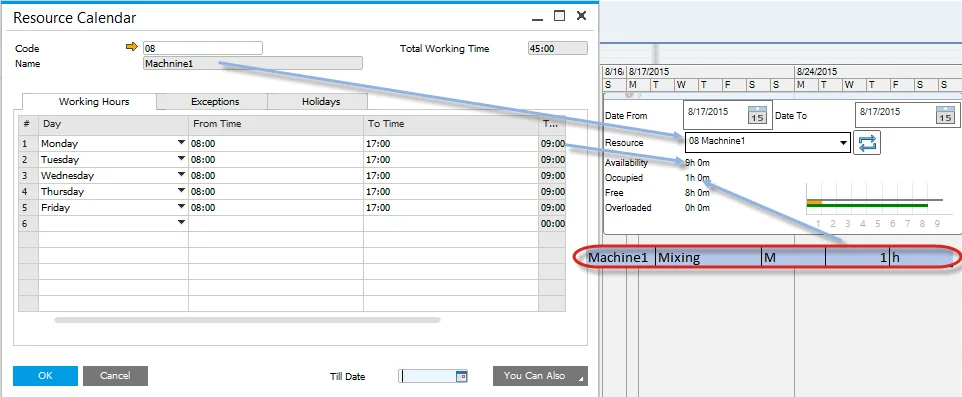
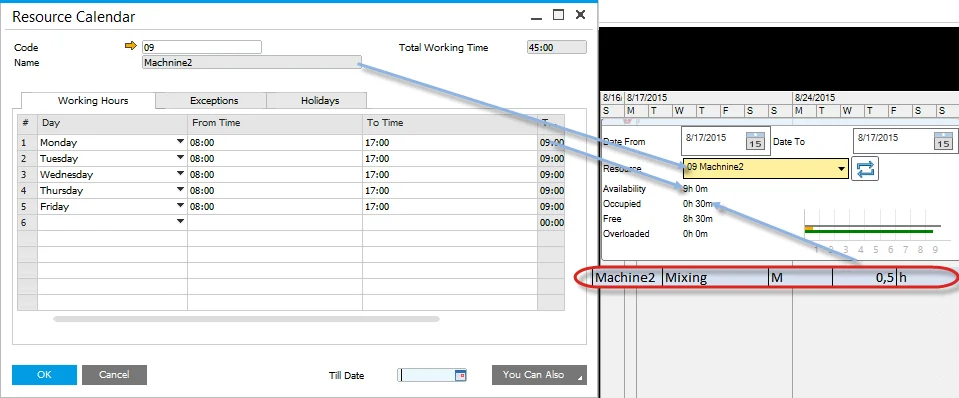
The following example helps to understand the data displayed on the resource chart and where it was taken.
The screenshots below present Manufacturing Orders used on the chart:

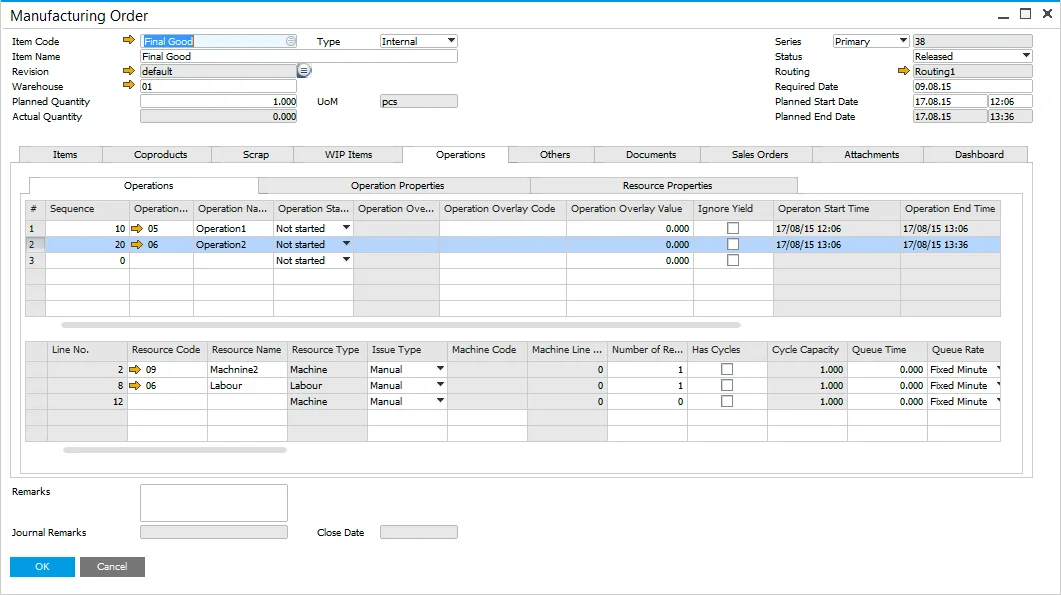
Resources used on those Manufacturing Orders are:
| Resources | Resource Group | Type | Run time | UoM | |
|---|---|---|---|---|---|
| Operation1 | Machine1 | Mixing | M | 1 | h |
| Tool-01 | Tooling | T | 1 | h | |
| Operation2 | Machine2 | Mixing | M | 0,5 | h |
| Labor | Tooling | L | 0,5 | h |
Resources and resources groups are available on the chart from the drop-down list:

Resource
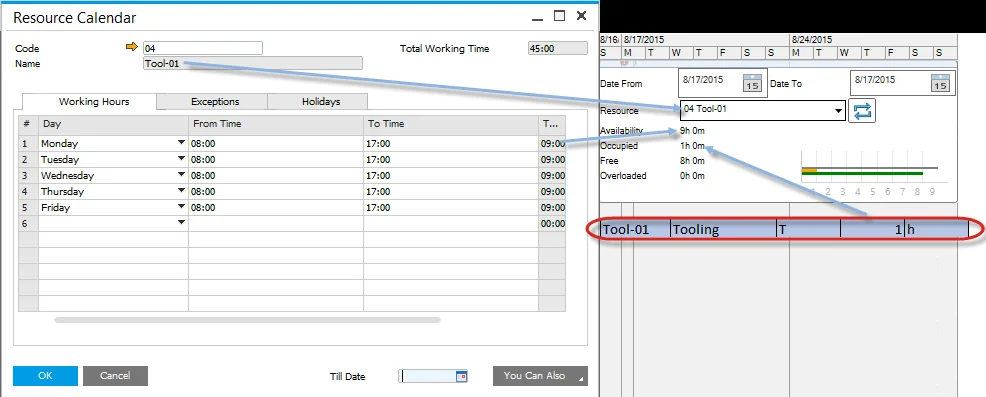
The following screenshots present a resource chart with a specific resource chosen. Note that labor is not taken into calculation account:
Tool-01:
Machine1:
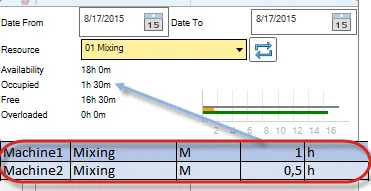
Machine2:
Resource Group
The following screenshots present a resource chart with a specific resource group chosen. When a resource group is selected, a combined time of every element in a group is displayed. Note that labor is not taken into calculation account:
Tooling:

Mixing: