Batch Traceability
ProcessForce Batch traceability function allows one to trace Item Batches throughout all their life in a company: from production (or purchase), being a part of a production process of another item, to delivery to a client. Instant access to Batch records is handy, e.g., in complaint management or recall process.
Inventory → Item Management → Batches → Batch Traceability
Access
You can reach ProcessForce Batch Traceability by:
- Modules Menu (check the path above)
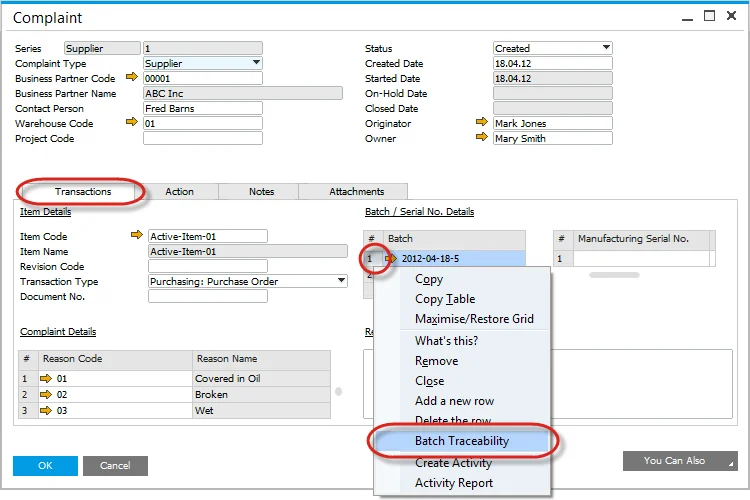
- Transaction tab on the Complaint form, right-click on a Batch.
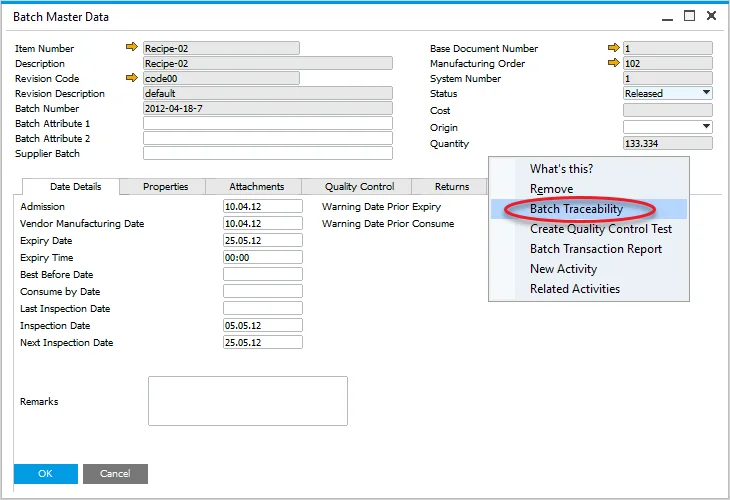
- Batch Master Data form the context menu.
Opening Batch Trace Visualization form
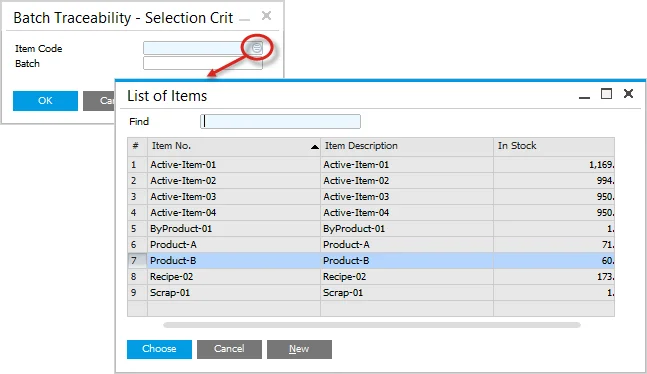
After opening the Batch Traceability function, Batch Traceability. Selection Criteria will open.
Choose Item Code from a list:
Choose a Batch from a list. Only Batches of chosen Item will be displayed:
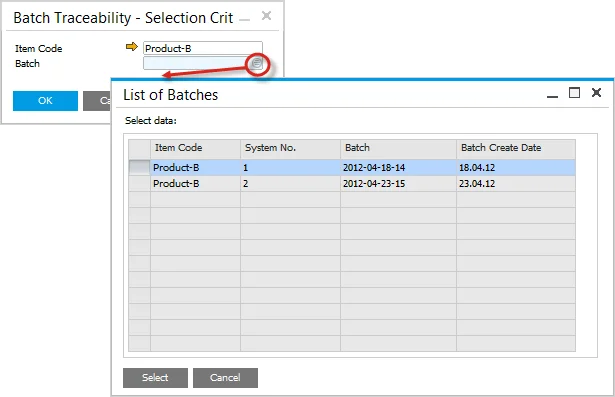
Click the OK button to confirm the choice. A batch Trace Visualization form will be displayed.
Batch Trace Visualization
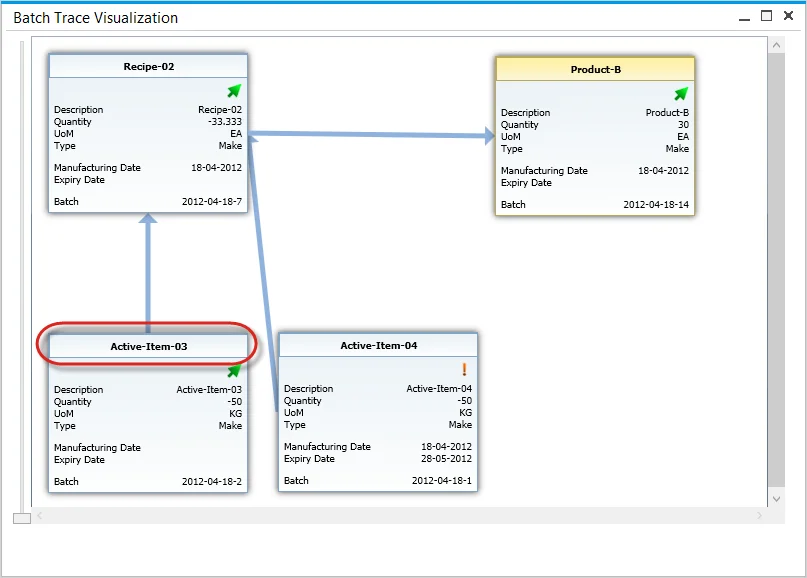
ProcessForce Batch Traceability function is operated from the Batch Trace Visualization form:
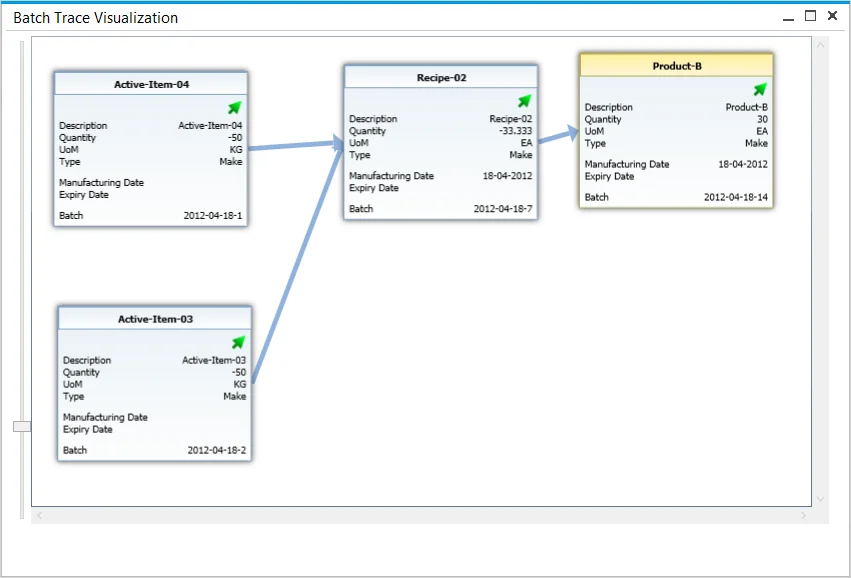
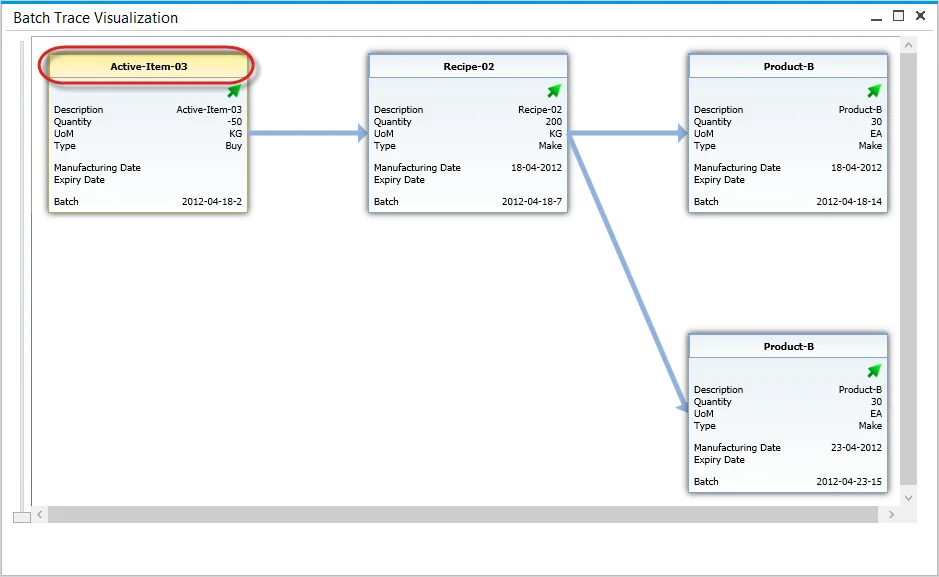
On this chart, specific Batches are represented by boxes with their details. Boxes can be moved by drag-and-drop.
You can zoom in or out of the view using a mouse roll or a scroll bar.
Data included on Batch boxes:
- Batch status icon:
- arrow – released,
- x – not accessible,
- exclamation mark – locked.
- Description
- Quantity – if it is negative, it indicates the quantity that was used in a production process,
- UoM – Unit of Measurement,
- Type – indicates if an item was produced or purchased,
- Manufacturing Date – if the Item was produced (not purchased),
- Expiry Date,
- Batch – Batch name.
Transactions
Right-click on a specific box to see all activities and transactions connected to the Batch:
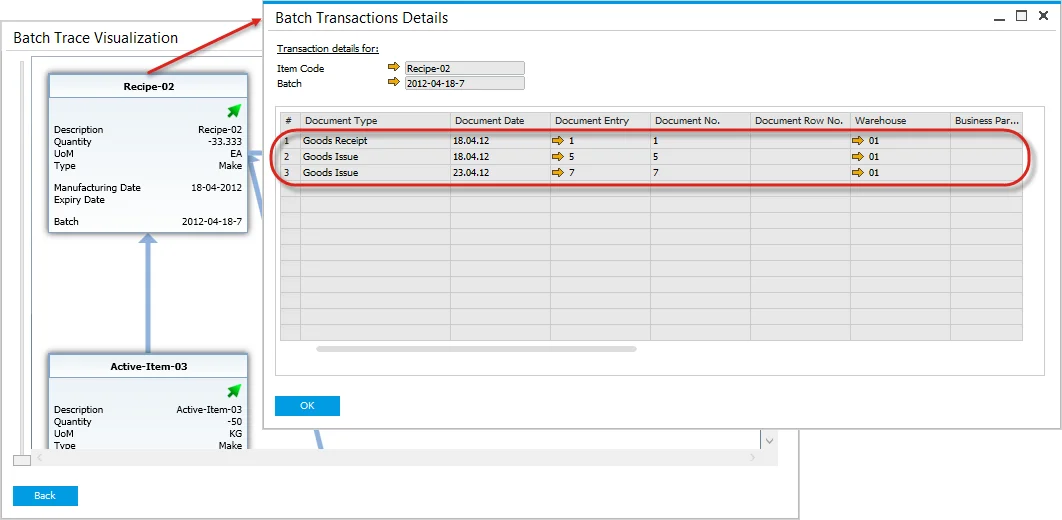
Click the yellow arrow in a specific document row to get more information about it.
Going forward
In Batch Trace Visualization form shows what a specific Item was made of. It is looking back on every batch used in a production process to the point of a chosen Item.
You can also choose a Batch and go forward to see where the Items from a specific Batch were used. To do that, hold Control and right-click a desired Batch.